
Files and folders
Set your naming templates under OAC → OAC Options → Filename before starting an extraction. A template combines text you type with placeholders for album information, such as %albumtitle%.
Enter the album and track information before setting up filenames.
Set up artist and album folders
Section titled “Set up artist and album folders”To group albums by artist, enter this album-folder template:
%albumartist%/%albumtitle%For track filenames, use:
%tracknr2% - %title%With album artist The Example Ensemble, album Open Horizons, and track 1 named First Light, these templates give:
| Item | Name |
|---|---|
| Album folder | The Example Ensemble/Open Horizons |
| Track filename | 01 - First Light followed by the audio format’s extension |
Swipe to see the full image
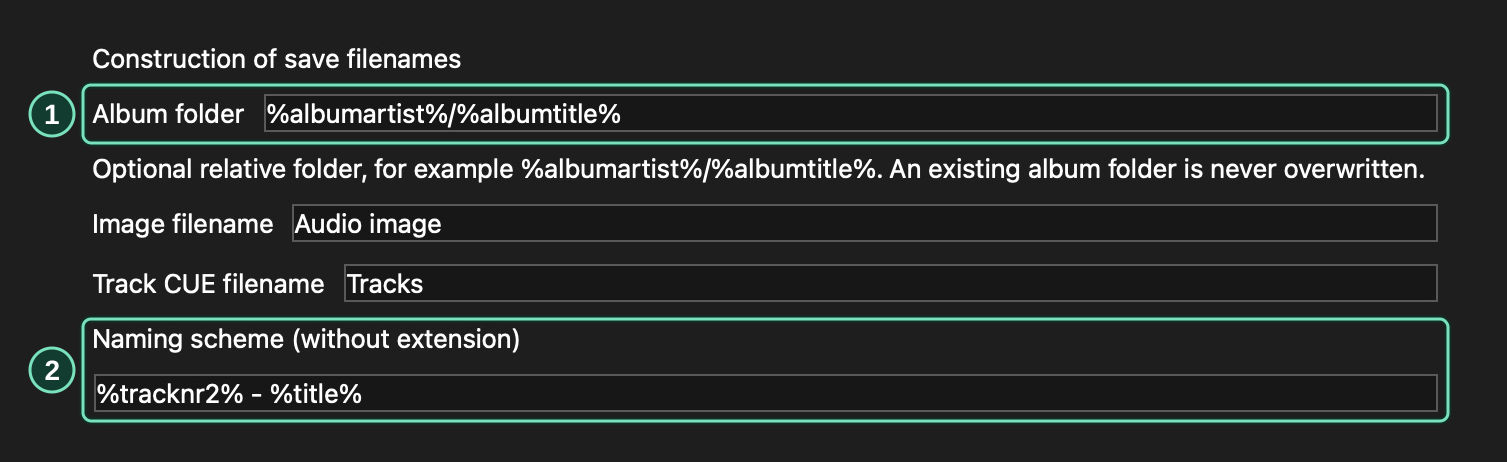
OAC → OAC Options → Filename
- Use %albumartist%/%albumtitle% for artist and album folders.
- Use %tracknr2% - %title% for numbered tracks. The extension is added automatically.
Each enabled preset writes to its own subfolder. With the FLAC preset, track 1 is saved as The Example Ensemble/Open Horizons/flac/01 - First Light.flac.
Available placeholders
Section titled “Available placeholders”| Placeholder | Replaced by |
|---|---|
%albumartist% |
Album artist |
%albumtitle% |
Album title |
%year% |
Album year |
%cdnumber% |
Disc number within a set |
%title% |
Track title |
%artist% |
Track artist |
%tracknr2% |
Track number with at least two digits, such as 01 |
%tracknr3% |
Track number with at least three digits, such as 001 |
Use album information in folder templates. Track titles, track artists, and track numbers belong in track-filename templates. You can enable separate templates for various-artists albums.
Name tracks on various-artists albums
Section titled “Name tracks on various-artists albums”Enable Use various artist naming scheme to use a separate track template for compilations. Including %artist% puts each track’s artist in its filename. You can also enable Use a different folder for various artists and enter a separate album-folder template.
Swipe to see the full image

OAC → OAC Options → Filename
- Include %artist% in the various-artist scheme to identify each track's artist.
- Enable a separate album-folder template if you want compilations stored elsewhere.
Choose the destination when extracting
Section titled “Choose the destination when extracting”Under OAC → OAC Options → Directories, choose Ask every time to select a destination for each copy, or Use this directory to keep using the folder selected with Browse.
Swipe to see the full image
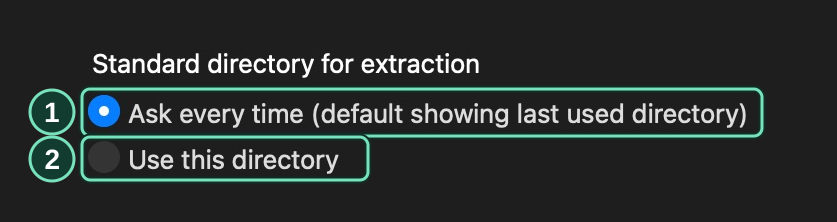
OAC → OAC Options → Directories
- Ask every time opens the destination picker for each copy.
- Use this directory reuses the folder you choose with Browse.
Select an existing folder when the Copy command asks for one. OpenAudioCopy creates your album folder inside it. If you leave the album-folder template empty, look for a newly created folder whose name starts with OpenAudioCopy-.
If the album folder already exists, choose a different destination or change the template. For rejected names, see filename and destination errors.
Image and CUE filenames
Section titled “Image and CUE filenames”Set image and CUE filenames on the same settings page. If you later rename an audio file, update its filename in the CUE sheet too.