
FLAC, WAV, and output presets
Choose FLAC when you want smaller files with album tags and cover artwork. Choose WAV for uncompressed audio. Both preserve the samples extracted from the CD.
Save a FLAC preset
Section titled “Save a FLAC preset”-
Open OAC → Compression Options → Output Presets.
-
Click Add FLAC preset and enter a name.
Swipe to see the full image
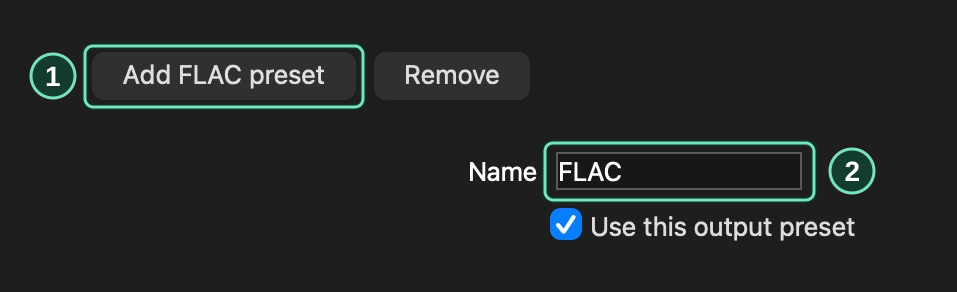 Add and name a presetFull-size image
OAC → Compression Options → Output Presets
- Click Add FLAC preset.
- Enter a preset name, such as FLAC.
-
Check Use this output preset.
-
Choose the options below, then click OK.
Swipe to see the full image
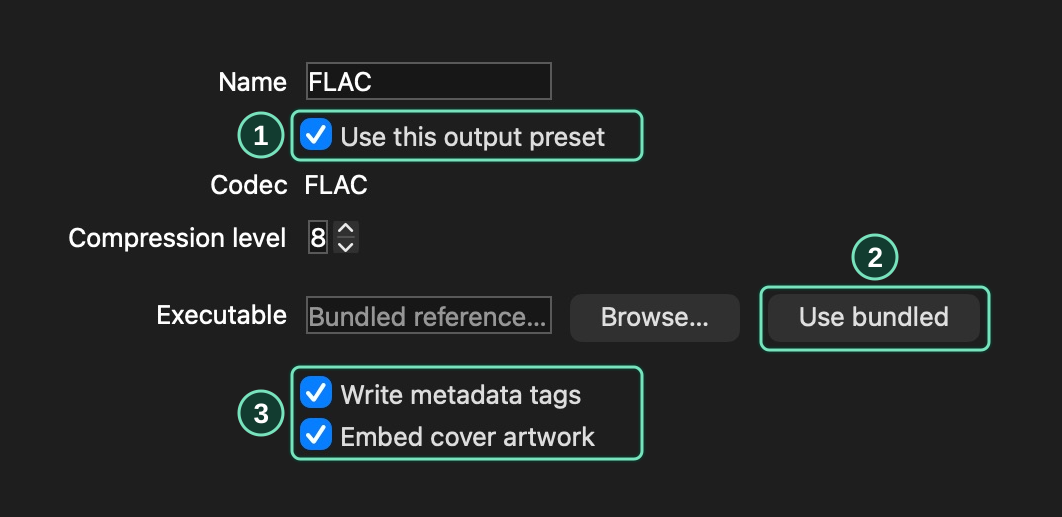 Set the FLAC output optionsFull-size image
OAC → Compression Options → Output Presets
- Enable this preset for compressed extraction.
- Select the supplied FLAC encoder.
- Save album tags and the selected cover.
| Setting | How to use it |
|---|---|
| Compression level | Choose 0–8. Higher levels spend more time compressing the audio. Every level is lossless. |
| Executable | Click Use bundled for the supplied FLAC encoder, or browse to your own FLAC encoder. |
| Write metadata tags | Enable this to include the album and track information you reviewed. |
| Embed cover artwork | Enable this to include the selected cover image. See Metadata and artwork to choose one. |
| Also keep uncompressed WAV files | Save WAV copies alongside the encoded files. |
| Parallel encoding jobs | Choose how many encoding tasks may run at once, from one to four. |
Extract with your chosen format
Section titled “Extract with your chosen format”Enable the presets you want, then choose Action → Copy Selected Tracks → Compressed. Each enabled preset creates a separate set of files.
For WAV, choose Action → Copy Selected Tracks → Uncompressed.
The corresponding Copy Image & Create CUE Sheet commands use the same format choices. See Disc images and CUE sheets to save an album as an image.
Monitor or retry encoding
Section titled “Monitor or retry encoding”Open Tools → Compression Queue Control Center, or click Open compression queue in the extraction dialog, to check encoding tasks.
Swipe to see the full image
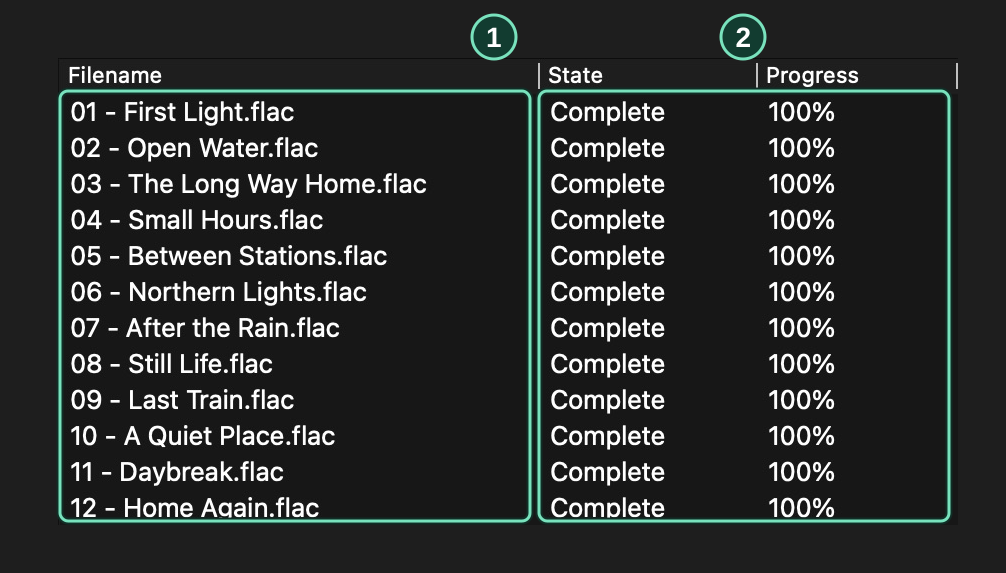
Tools → Compression Queue Control Center
- Each row shows one FLAC file.
- Wait for every file to show Complete.
If a task fails:
- Read its error message and correct the cause, such as insufficient space or an unavailable encoder.
- Select the failed task and click Retry.
- Check the new result before closing OpenAudioCopy.
Retry uses the extracted audio held in temporary files. Finish retries before closing OpenAudioCopy. Delete Task(s) removes the temporary audio once no remaining task uses it.
For encoding and file-check errors, see FLAC encoding failed.