
Rip your first CD
To save your CD as separate FLAC or WAV tracks, connect your drive, insert the disc, and complete drive setup. The screenshots use the built-in virtual album Open Horizons by The Example Ensemble.
1. Load the disc
Section titled “1. Load the disc”Choose OAC → Load Audio CD, select your drive, and click Load CD. Check the track count and durations. Leave checked the tracks you want to copy.
Swipe to see the full image
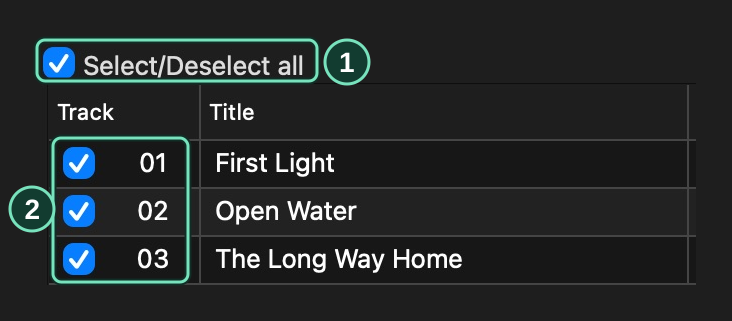
Main window → Track list
- Select or clear all tracks together.
- Leave checked only the tracks you want to copy.
2. Enter or look up album information
Section titled “2. Enter or look up album information”You can type the album title, artist, and track names yourself, or look them up with MusicBrainz.
Swipe to see the full image
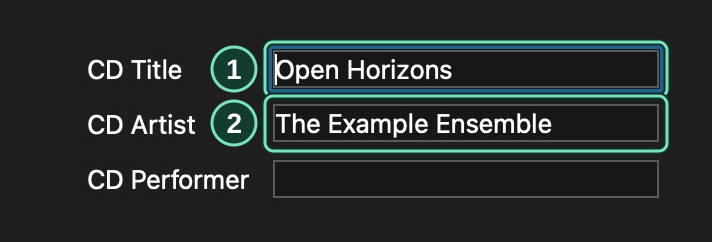
Main window → Album information
- Check the album title before creating filenames.
- Check the album artist used for folders and tags.
For an online lookup:
- Open OAC → Metadata Options and select MusicBrainz as the provider.
- Fill in Contact email or website and clear Work offline. Click OK.
- Choose Database → Get CD Information From → Metadata Provider.
- Select the matching release and review the album and track names under Changes to apply.
- Click Apply.
To include a cover, use Find covers before applying the changes. Select an image, click Preview selected cover, and check Use this image as the front cover. You will also need to enable artwork in the FLAC preset in the next step.
See Metadata and artwork for offline lookup and editing.
3. Choose FLAC or WAV
Section titled “3. Choose FLAC or WAV”FLAC stores lossless audio, album tags, and artwork in smaller files. WAV stores uncompressed audio.
For FLAC:
- Open OAC → Compression Options → Output Presets.
- Click Add FLAC preset and give it a name.
- Check Use this output preset and Write metadata tags. Check Embed cover artwork if you selected a cover.
- Click Use bundled to use the supplied encoder, then OK to save.
Swipe to see the full image
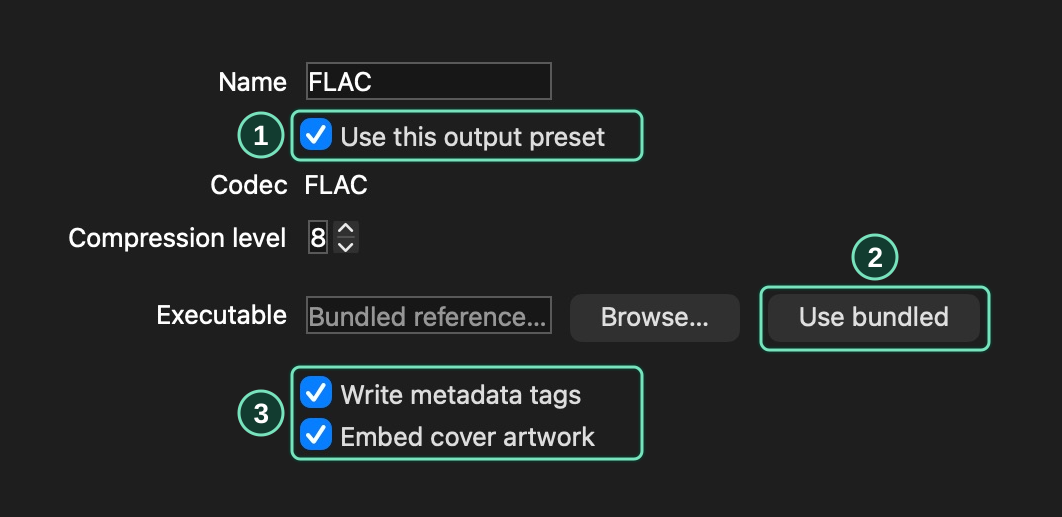
OAC → Compression Options → Output Presets
- Enable this preset for compressed extraction.
- Select the supplied FLAC encoder.
- Save album tags and the selected cover.
For WAV, you can skip preset setup.
If you want to choose your own filenames, set them under OAC → OAC Options → Filename before starting. See Files and folders for an example.
4. Extract the tracks
Section titled “4. Extract the tracks”Choose Action → Copy Selected Tracks → Compressed for FLAC, or Uncompressed for WAV. If a folder picker opens, select an existing destination folder. Otherwise, the copy uses the folder set under OAC → OAC Options → Directories.
In Copy Audio Data, check the reading method, drive correction, and results folder. Enable Look up verification results online for an online comparison. If you enable Verify with CUETools DB, include every audio track.
Swipe to see the full image
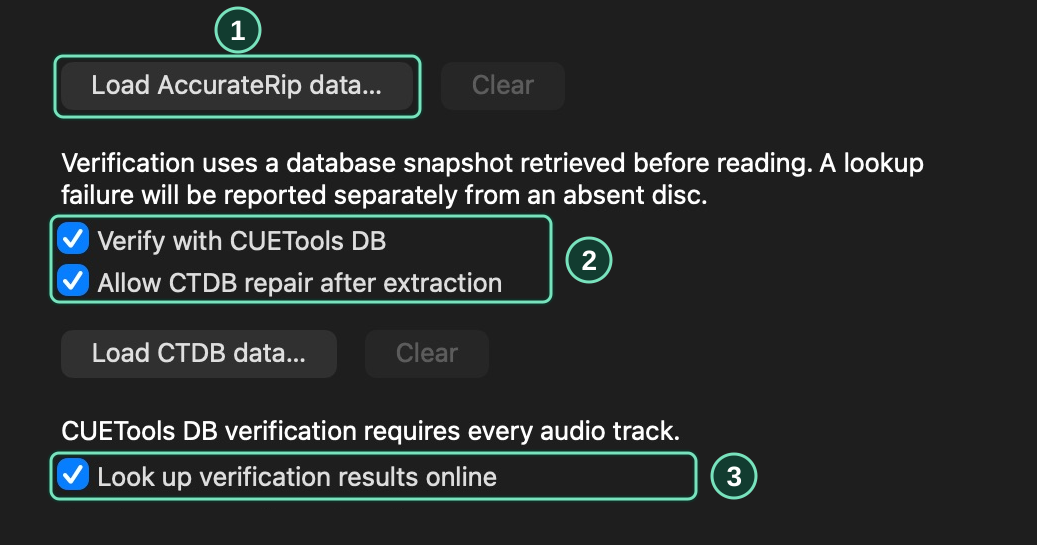
Action → Copy Selected Tracks → Compressed
- Load a saved AccurateRip data file.
- Select every audio track for CUETools DB verification.
- Retrieve verification records online.
Click Start copy.
Wait for copying to finish before removing the disc.
Swipe to see the full image
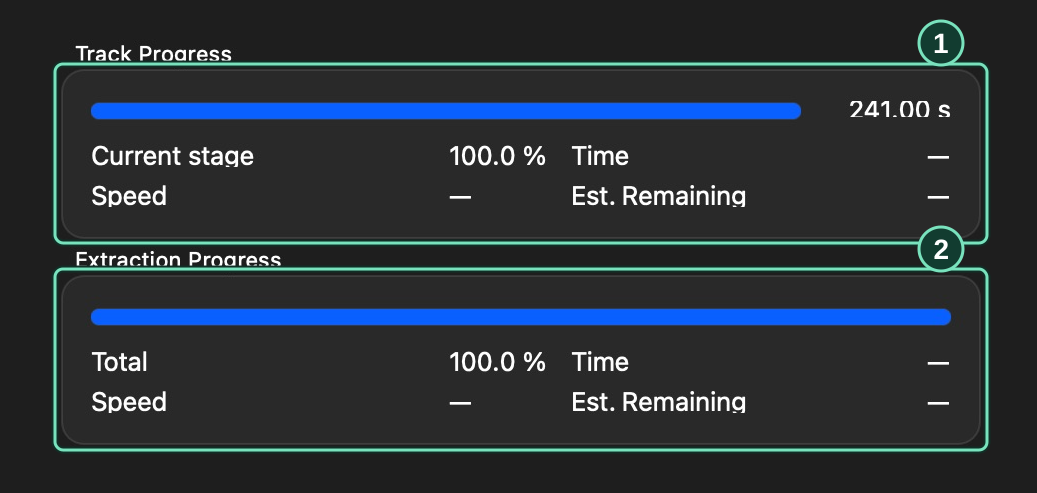
Copy Audio Data → Progress
- Track Progress shows how much of the current track has been read.
- Extraction Progress covers all selected tracks.
5. Check the results
Section titled “5. Check the results”When Status and Error Messages opens, review the result for each track.
For failed files or unverified tracks, follow Read the results.
Swipe to see the full image
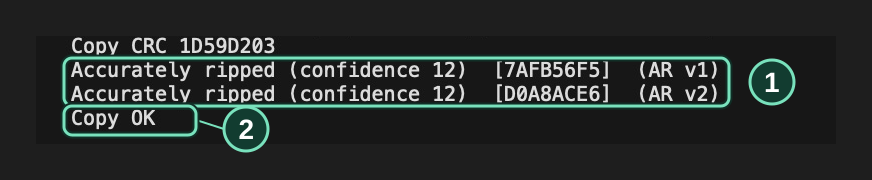
Status and Error Messages → Track result
- This track matched AccurateRip with confidence 12.
- Copy OK confirms that the saved file passed its audio check.
Use Save Log to save the extraction report alongside your audio files.