
Profiles and EAC import
Profiles save your drive, output, and filename settings for reuse.
Save and load a profile
Section titled “Save and load a profile”After choosing your output, filename, and drive settings, click New in the profile bar at the bottom of the main window. Enter a name and click OK to save those settings as a profile.
Swipe to see the full image
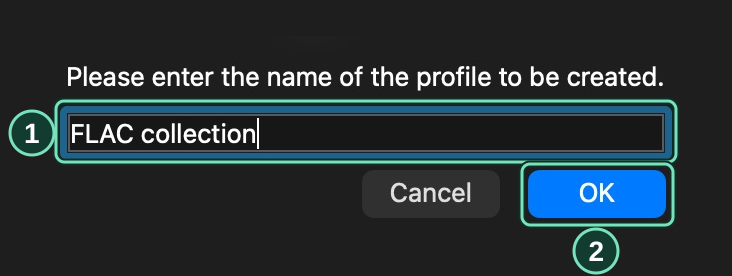
Main window → New
- Enter a profile name.
- Click OK to save your current settings.
To use saved settings, choose the profile in the list and click Load. After changing settings, click Save to update the selected profile. If Default (Complete) is selected, Save asks for a new profile name.
Swipe to see the full image

Main window → Profile bar
- Choose a profile in the list.
- Load applies the selected profile. Save updates it with your current settings.
You can also load and save the selected profile through OAC → Profiles.
Import an EAC profile
Section titled “Import an EAC profile”- Choose OAC → Profiles → Import Profile and select the EAC profile.
- Review the import preview. Check which settings are selected and which could not be imported.
- Save the imported profile.
- Select the imported profile in the profile bar and click Load when you want to use it.
In the imported FLAC preset, click Use bundled or select an encoder installed on this computer. Enable the output presets you want to use.
Select the drive you will use and complete OpenAudioCopy’s drive setup.
Import an EAC library
Section titled “Import an EAC library”Choose Database → Import Database and select the EAC SQL CE library. Review the proposed records and resolve any conflicts before saving the import. Then open Database → Browse Database to check the imported albums.